
Artisan utilizes several Quality Assurance (QA) spreadsheets, depending upon the project. These include:
- Internal QA
- QA/Browser Testing (QA/BT)
- Browser Testing (BT)
- Final Course Review (FCR)
- Client QA
The difference between these spreadsheets is mainly the audience. Learn how to use one, and you’ve learned how to use them all!
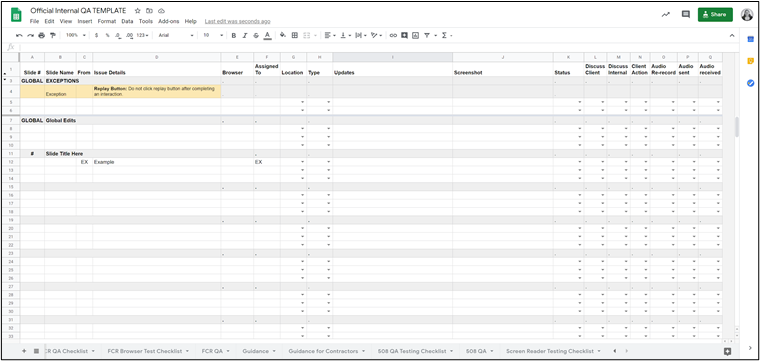
Rows
Global Exceptions: These notes are for clients and testers, noting design and functionality decisions that deviate from the Artisan standard.
Global Edits: These change requests apply across multiple slides in the course or are related to player/shell elements.
Slide #/Slide Title: Each slide title is listed individually and highlighted in light gray. The rows underneath are change requests related to that particular slide.
Columns
Slide #: The slide number found in the course menu. Even if the client prefers not to number the slides, drafts should include them. They can be removed before final delivery.
Slide Name: The title is found in the course menu and/or on the slide itself. This should match the Screen Name filed from the storyboards.
From: The initials of the reviewer.
Issue Details: An actionable description of an error change request. On the Client QA spreadsheet, this column is labeled Change Request.
Browser: The browser on which the tester experienced the issue.
Assigned To: The initials of the person whose expertise is needed in order to resolve the issue other than the developer. Because the vast majority of line items go to the developer, initials are only entered in this column if assigned to someone else.
Location: Where the error or change request can be found. Options include:
- Base Slide
- Closed Captioning
- Feedback
- Glossary
- Menu
- Player
- Pop-Up
- Resources Tab
- Transcript
- Video
Type: The category the change request fits into. Options include:
- 508: A problem related to Section 508/WCAG compliance.
- Animation: A problem with entrance animations, exit animations, or motion paths.
- Audio: A problem with narration, music, or sound effects, such as a blip in the file, an overly long, noticeable pause, a mispronounced word, a word that is not spoken clearly, etc.
- Image: A problem with an image, such as poor quality (fuzzy, pixelated, or watermarked images), sizing issues, obscured text, etc. Note that some images may be lower quality or watermarked early in the development process because they have not been purchased yet.
- Link: A problem with a hyperlink, such as a dead link or a link that points to the wrong destination.
- Logic: A problem typically related to triggers/variables. Examples include a Next button taking you to the incorrect slide, a Submit button bringing up the wrong feedback, or a visited state not working.
- Other: A catch-all for problems not fitting any of the established.
- Text: A problem with typed text, such as extra spaces, typos, and grammar/spelling mistakes.
- Timing: A problem with synchronization, including onscreen elements not syncing up properly with the narration and the seekbar running longer than the audio.
- Video: A problem with a video, such as a blip in the file, sound issues, and buffering issues.
Updates: Additional information about the issue/change request, formatted as Initials: Comment (e.g., EH: Submitted ticket to Articulate on 8/1.)
Screenshot: A visual record of the issue/change request, used to illustrate what the user experienced or to help the team find the location of subtle issues.
Status: The current status of the issue/change request. Several of the options are used only by Artisan employees.
- AEL approved: An Artisan employee has confirmed thatthe issue/change request has been resolved.
- Bug: An Artisan employee has confirmed that, due to an authoring tool or browser-related bug, the issue/change request cannot be resolved.
- Client approved: The client has confirmed thatthe issue/change request has been resolved.
- Closed as duplicate: The same change request for the same slide has been noted on another row in the spreadsheet or on another tab or spreadsheet.
- Made: The developer has confirmed that the change request has been made in the authoring tool.
- Note from Developer: The developer has left a comment for Artisan’s consideration or has explained why it wasn’t possible to mark a particular change request made or verified.
- On hold: An Artisan employee has determined that we are waiting on a file, piece of information, or an answer to a question. For example, if we are waiting to receive an audio file from a vendor, we would use the “on hold” status.
- Removed: An Artisan employee has determined that the requested change will not be made. Reasons for selecting this status include software limitations, budget limitations, timeline limitations, best practices, etc.
- Reopened: The client or an Artisan employee has determined that the issue or change request is not yet resolved.
Troubleshoot: An Artisan employee is conducting further research on the issue/change request.
Verified: The developer has confirmed that the change request has been verified in a browser.
NOTE: Developers use only the Made, Verified, and Note from Developer status options. If developers are unable to mark a change request Made, they add a comment to the Updates column providing details about the roadblock and change the status to Note from Developer. The Artisan team will determine the next steps and communicate them to the developer via the spreadsheet.
Discuss Client: Used in combination with On hold. An Artisan employee will discuss the issue/change request with the client.
Discuss Internal: Used in combination with On hold. The Artisan team will discuss the issue/change request before proceeding.
Client Action: Used in combination with On hold. The client needs to provide something before the change request can be made.
Audio Re-Record: Used in combination with On hold. Audio files are needed before the change request can be made.
Audio Sent: Used in combination with On hold. The narrator is in the process of recording the audio.
Audio Received: Used to indicate that audio files have been received.